Windows: Disable Security Messages on Windows 10

To add the policy to a Windows machine, do the following:
Tap on the Windows-key, type gpedit.msc, and hit the Enter-key. This starts the Group Policy Editor on the system.
Use the sidebar to go to User Configuration > Administrative Templates > Start Menu and Taskbar.
Locate Remove Notifications and Action Center there. If the list is not sorted alphabetically, click on the “setting” column title to do so. This makes it easier to find the policy.
Double-click on the policy.
Set it to enabled.
Restart the PC

Windows Registry

Tap on the Windows-key, type regedit.exe, and hit the Enter-key on the keyboard afterwards.
Confirm the UAC prompt that appears.
Go to HKEY_CURRENT_USER\SOFTWARE\Policies\Microsoft\Windows\Explorer using the left sidebar menu. If Explorer does not exist, right-click on Windows and select New > Key, and name it Explorer.
Right-click on Explorer, and select New > Dword (32-bit) Value.
Name it DisableNotificationCenter.
Double-click the new entry afterwards, and set its value to 1.
Restart the PC.
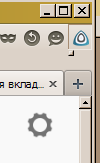
Firefox: не работает friGate

У иконки friGate в панели инструментов не отображается меню, в результате им (friGate) невозможно управлять. При нажатии кнопка в панели инструментов отображается как нажатая, но вместо меню возле нижнего левого угла кнопки маленькая пимпочка

Ремонт:
Удалить папку chrome по следующему пути в Вашем профиле
%appdata%\Mozilla\Firefox\Profiles\имя вашего профиля\storage\permanent\chrome\

также
откройте файл prefs.js в папке с профилем, и удалите все строчки где есть слово frigate

Windows: Disable Cortana via Group Policy

First, launch the group policy editor by pressing Windows + R, typing “gpedit.msc” into the box, and pressing Enter.

Navigate to Computer Configuration > Administrative Templates > Windows Components > Search.

Locate the “Allow Cortana” setting in the right pane and double-click it.

Set the Allow Cortana option to “Disabled” and then click “OK”.

You can now close the group policy editor. You’ll have to sign out and sign back in–or restart your PC–for this change to take effect.

Posts navigation

1 2 3 22 23 24 25 26 27 28 133 134 135
Scroll to top